Clients
A client is a person or company you work with. You add clients once, then choose them when you create an event or issue an invoice. A client can be an Individual (a private person) or a Company (an organisation with a TIN and a full address). Company clients can also have subordinate units — specific schools, kindergartens or care centres that the invoice is actually addressed to.
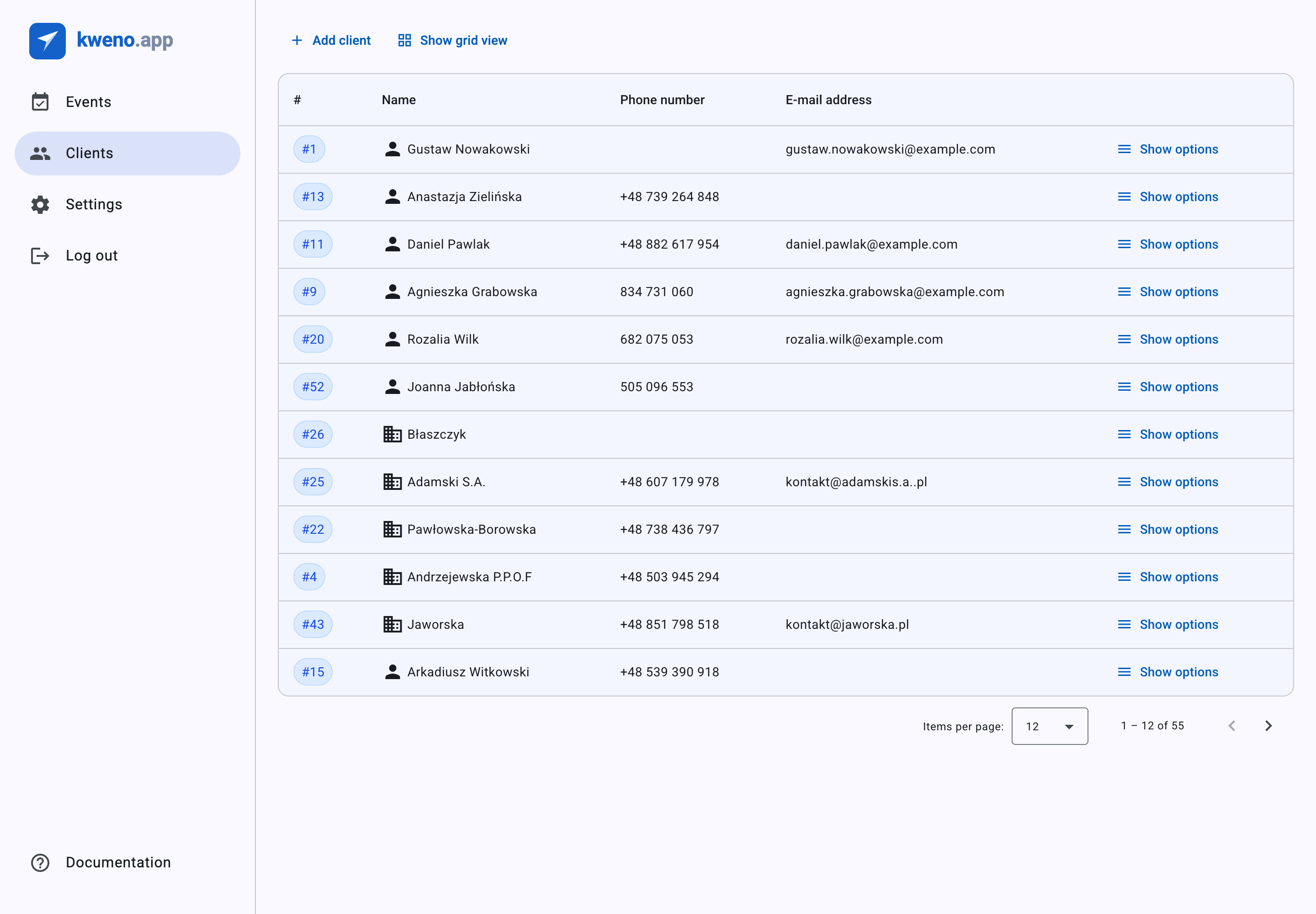
You find your clients under Clients. Each client is listed with an auto-assigned Client number (shown as a blue pill like #12), their Name, and — when present — their Phone number and E-mail address.
The client list
Open Clients to see everyone you have saved. The list shows 12 clients per page; you can switch the page size to 12, 24 or 48.
You can view the list two ways, using the toggle button:
- Show table view — a table with columns
#(the client number), Name, Phone number and E-mail address. - Show grid view — one card per client showing Client number, Name, and Phone number / E-mail address when set.
On small and medium screens the app switches to card view automatically; on large screens it defaults to the table.
Phone numbers appear with a + country code, and 9-digit numbers are grouped automatically, for example +48 500 600 700.
Each client row has a Show options menu with three actions:
- Show preview — open the read-only details.
- Edit client — change the client's data.
- Delete client — remove the client (blocked if they have events; see Troubleshooting).
Note
If you have not added anyone yet, the list shows No clients yet with the text "Add your first client to get started." and an Add client button.
Add a client
- Go to Clients.
- Click Add client. The Adding new client dialog opens.
- Choose the client type at the top — Individual or Company.
- Fill in the form (see the tabs below).
- Click Add client to save. The button stays disabled until the form is valid.
Click Close at any time to discard the dialog without saving.
Note
The client type is fixed once the client exists. When you later open a client with Edit client, the Individual / Company tabs are disabled and the dialog opens on the matching type. You cannot convert an individual into a company or the other way around.
An individual client is a private person. Only the name is required — address, phone and e-mail are all optional.
| Field | What it is | Notes |
|---|---|---|
| First name | The person's first name | Required. Up to 255 characters. |
| Last name | The person's last name | Required. Up to 255 characters. |
| Street and number | Street address | Optional. Up to 255 characters. |
| City | City | Optional. Up to 255 characters. |
| Zip code | Postal code | Optional. Polish format NN-NNN (two digits, hyphen, three digits), e.g. 00-001. |
| Country | Country | Optional. Choose None or Poland. Defaults to None for individuals. |
| Country code | Phone dialling prefix | Optional. Digits only, up to 3 digits. Shown with a leading +. |
| Phone number | Phone number | Optional. 9 or 10 digits. |
| E-mail address | Optional. Must be a valid e-mail address. |
A company client is an organisation you invoice. Because the details feed your invoices, a company needs its Company name, TIN and a full address.
| Field | What it is | Notes |
|---|---|---|
| Company name | Legal or trading name | Required. Up to 255 characters. |
| TIN | Tax identification number (Polish NIP) | Required. Exactly 10 digits with a valid checksum. |
| REGON | Statistical number | Optional. Exactly 9 or 14 digits — no other length is accepted. |
| Street and number | Street address | Required. Up to 255 characters. |
| City | City | Required. Up to 255 characters. |
| Zip code | Postal code | Required. Format NN-NNN, e.g. 00-001. |
| Country | Country | Required. Defaults to Poland, which is the only choice. |
| Contact person | A named person at the company | Optional. Up to 255 characters. |
| Country code | Phone dialling prefix | Optional. Digits only, up to 3 digits. Shown with a leading +. |
| Phone number | Phone number | Optional. 9 or 10 digits. |
| E-mail address | Optional. Must be a valid e-mail address. |
Tip
The TIN, REGON and address you enter here become the buyer details on the client's invoices. Your own seller details come from Business data.
Subordinate units
Subordinate units apply to company clients only. Use them when an invoice goes to a specific unit inside a larger entity — for example one school, kindergarten or care centre within a municipality. The help text above the unit list reads:
E.g. school, kindergarten, social care center — when the invoice goes to a specific unit within this entity.
Only available when editing an existing company
The Subordinate units section is hidden while you are creating a brand-new client. To add units, first save the company, then reopen it with Edit client (or open its preview). You can also manage units from the Subordinate units panel in the client preview.
Add a subordinate unit
- Open a saved company client with Edit client (or open its preview).
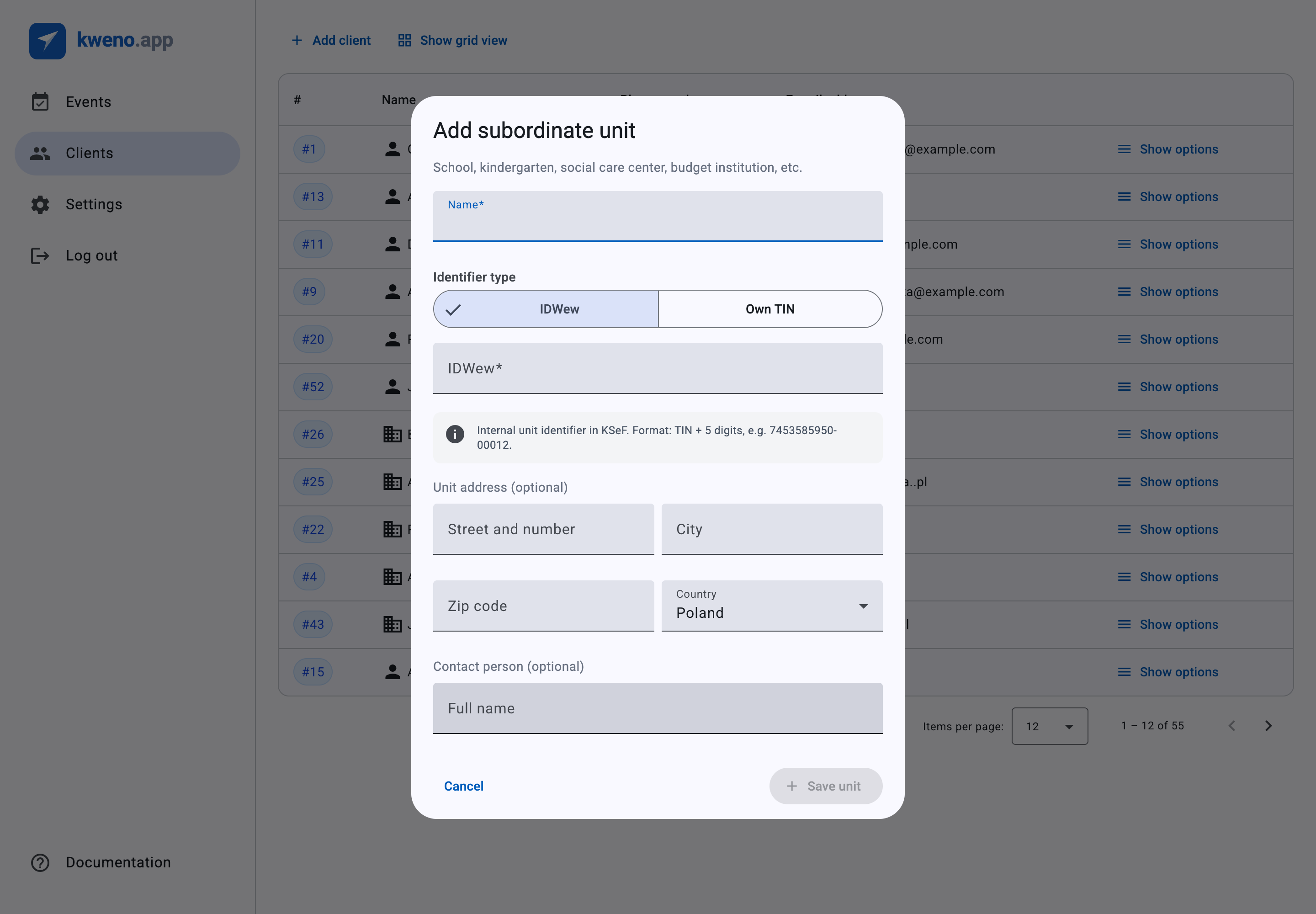
- Under Subordinate units, click Add subordinate unit. The Add subordinate unit dialog opens (sub-text: "School, kindergarten, social care center, budget institution, etc.").
- Enter the unit Name (required, up to 255 characters).
- Choose the Identifier type — every unit needs exactly one identifier, either IDWew or Own TIN (see below).
- Optionally fill in Unit address (optional) and Contact person (optional).
- Click Save unit.
To change a unit later, click Edit on its card, adjust the fields and click Update unit. To remove one, click Delete on its card.
Units save on their own
Subordinate units are saved immediately when you click Save unit or Update unit — this is a separate action from the client Edit client button. Deleting a unit also takes effect straight away. You do not need to save the client afterwards for unit changes to stick.
Choosing the identifier
The Identifier type toggle offers two mutually exclusive options. Switching the toggle clears both identifier values.
The internal unit identifier used in KSeF. The IDWew field is required and follows a fixed format:
- 10 digits, a hyphen, then 5 digits —
TIN-NNNNN. - The leading 10 digits must be the parent company's TIN.
The info box reads: "Internal unit identifier in KSeF. Format: TIN + 5 digits, e.g. 7453585950-00012."
Example
For a company whose TIN is 7453585950, a valid IDWew is 7453585950-00012 — the parent TIN, a hyphen, and a 5-digit unit number.
The unit has its own tax number. The TIN field is required and must be exactly 10 digits with a valid checksum. It must also be different from the parent company's TIN.
If a unit has address or contact details, they appear on its card as an address line and a Contact person block (name, phone and e-mail).
Preview a client
Choose Show preview from a client's options menu to open the Client preview dialog. It shows read-only detail rows, each only when the value is set:
- Client number (always) and Name (always)
- TIN, REGON and Contact person (company clients that have them)
- Street and number, City (shown as
zip city) and Country - Phone number and E-mail address
For company clients, the preview also has a Subordinate units panel showing the unit count, where you can add, edit and delete units.
Click Close to leave the preview.
Client events
The preview includes a Client events panel with the total event count in its header. It lists the 10 most recent events for this client, newest first, in a table with # (event number), Filing at (date and time) and Status.
- If the client has no events, the panel shows "No events assigned to this client."
- If more than 10 events exist, a footer line reads "and {N} more events".
See Events for what these statuses mean and how events are created.
Edit or remove a client
To change a client, choose Edit client from its options menu, update the fields and click Edit client in the dialog. Remember that the Individual / Company type cannot be changed after creation, and that subordinate units are saved separately.
To remove a client, choose Delete client. A confirmation dialog opens and checks the client's events first:
- If the client has no events, the dialog shows "You are deleting client #12. After deleting client data will be no longer available in a system." (where
#12is the number of the client being deleted) Click Delete client to confirm, or Cancel deleting client to back out. - If the client has events, deletion is blocked (see Troubleshooting).
Warning
Deleting a client is permanent — once removed, the client's data is no longer available in the system.
Troubleshooting
"Invalid TIN." Shown under the company TIN field when the value is not exactly 10 digits, or when its checksum is wrong. Check the number and re-enter it. (In the subordinate-unit dialog, the Own TIN field can instead show "TIN must be exactly 10 digits." or "TIN must differ from the parent client TIN." — those messages belong to that field, not the company form.)
"TIN prefix in IDWew must match the parent client TIN." Shown for a subordinate unit's IDWew when the leading 10 digits are not the parent company's TIN. Start the IDWew with the exact parent TIN.
"Format: 10 digits, hyphen, 5 digits (e.g. 7453585950-00012)." Shown when the IDWew value does not match the required pattern. Use 10 digits, a hyphen, then 5 digits.
Cannot delete a client
If the client has events, the delete dialog shows: "Client #12 has assigned events and cannot be deleted. Remove client events first." (where #12 is the client number) The Delete client button stays disabled. Remove or reassign every event tied to the client first, then delete it.
Related
- Events — create events and pick or add a client inline.
- Invoices & KSeF — how client and subordinate-unit details appear on invoices.
- Corrective invoices — adjust an invoice you have already issued.
- Business data — your own seller details used on invoices.