Costs
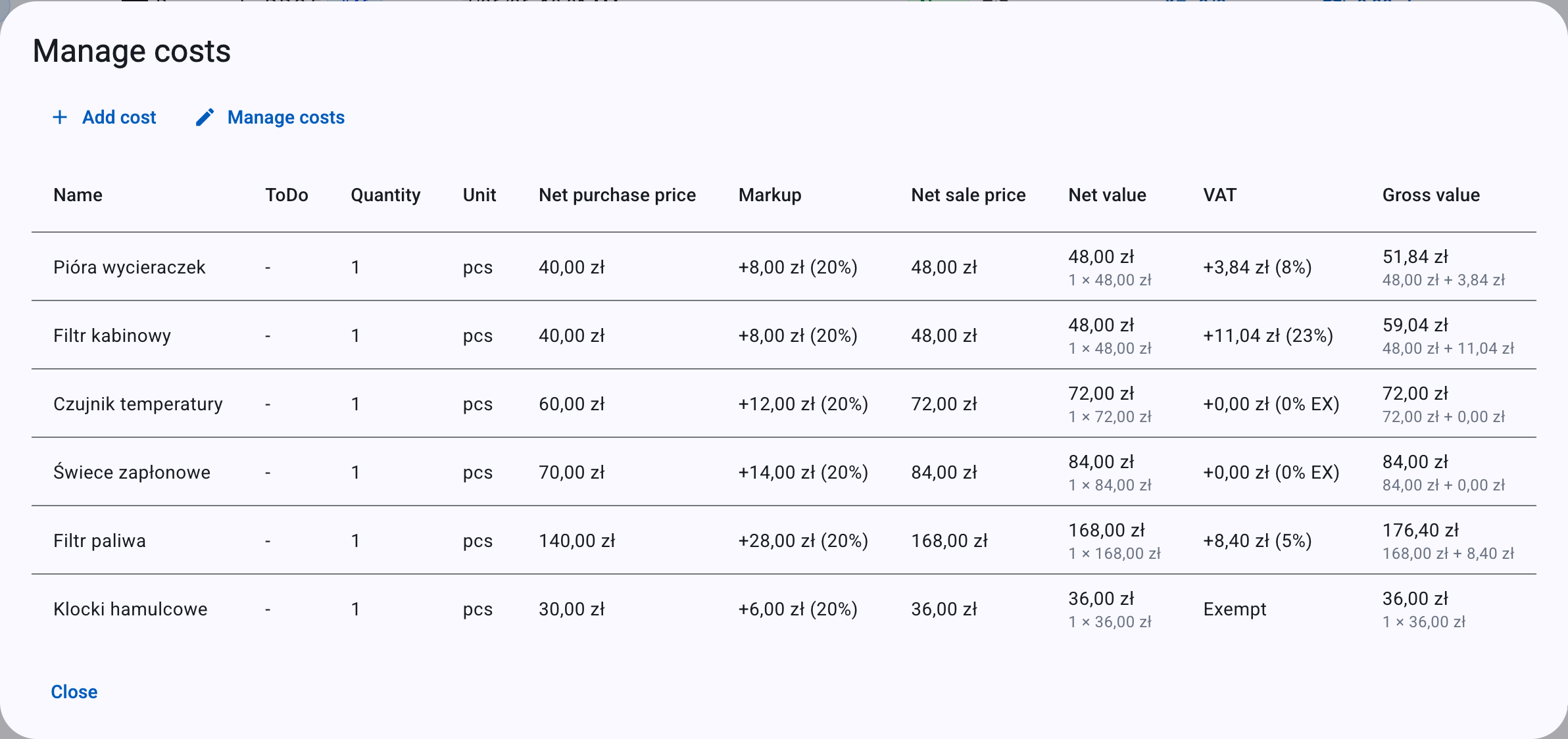
A cost is any priced line you add to an event — a part, a material, or any other item you want to charge for. Each cost records what you paid, what you sell it for, how many, and its VAT rate. When you invoice the event, every cost with a non-zero value becomes one line on the invoice, so costs are the main way your parts and materials reach the bill.
Costs live inside an event, alongside Working time entries and to-dos. Together, costs and working time make up the invoice totals.
Info
Whether a cost shows VAT columns and net/gross prices depends on your business's VAT status, not on the individual event. If your Business data marks you as an active VAT payer, you see net prices, a VAT rate selector, and separate VAT and gross figures. If you are not a VAT payer, prices are plain (no "Net" prefix), there is no VAT selector, and the value column is simply labelled Value.
Add a cost
- Open the event you want to bill from the event list. Each event row shows a Costs button whose face displays the total gross value of its costs and the count in parentheses, for example
123,45 zł (3). - Click the Costs button to open the costs dialog. Its title is Manage costs once at least one cost exists, or Costs when the event has none yet.
- Click Add cost. The Add cost dialog opens.
- Fill in the fields (see the field reference below).
- Save:
- Add cost and close saves the cost and closes the dialog.
- Add cost saves the cost and clears the form so you can immediately add another, keeping the dialog open.
Tip
When you add the very first cost to an event that had none, a Go to cost list shortcut button appears so you can jump straight to the list of costs you have just started.
Field reference
| Field | What it is | Notes |
|---|---|---|
| Name | Free-text name of the part, material, or line. | Required. |
| ToDo (optional) | Links this cost to one of the event's to-do items. | Only shown when the event has at least one to-do. Choose None to leave it unlinked, or pick a to-do to group the cost under it. |
| Quantity | How many units. | Required. Defaults to 1. Up to 3 decimal places. Must be greater than 0 (a quantity of 0 is rejected). |
| Net purchase price (VAT payers) / Purchase price (non-payers) | What you paid per unit. | Required. Up to 2 decimals. May be 0 (see the note under Markup and sale price). |
| Markup % | The percentage you add on top of the purchase price. | Optional. Two-way linked with the sale price — see below. |
| Net sale price (VAT payers) / Sale price (non-payers) | What you charge per unit. | Required. Up to 2 decimals. Two-way linked with Markup %. |
| Unit | The unit of measure. | Required. See the unit list below. |
| VAT rate | The VAT rate applied to this cost. | Required for VAT payers only. Defaults to 23%. Not shown for non-VAT payers, whose costs are always Exempt. |
Note
There is no user-facing Margin field on a cost. The only percentage field is Markup % (markup on the purchase price). Do not look for a margin control — it does not exist here.
Markup and sale price
Markup % and the sale price are two views of the same figure, and the dialog keeps them in sync automatically:
- Type a Markup % (with a purchase price present) and the sale price updates to
purchase price × (1 + markup / 100), rounded to 2 decimals. - Type a sale price (with a purchase price greater than 0) and Markup % updates to
((sale − purchase) ÷ purchase) × 100, rounded to 2 decimals. - Clearing one clears the other: clear Markup % and the sale price clears; clear the sale price and Markup % clears.
Example
You buy a part for 100 and want a 20% markup. Type 20 in Markup %, and the sale price becomes 120.00. Alternatively, type a sale price of 150 against the same purchase price of 100, and Markup % becomes 50.
Note
If the purchase price is 0, a markup cannot be calculated (there is nothing to mark up). The cost is saved with no markup figure, and the Markup column shows -.
In the cost table, when a markup exists it is shown as +{amount} ({percent}%), for example +20,00 zł (20%); when there is none it shows -.
Units
The Unit selector shows the short symbol for each unit. The available units are:
| Symbol | Unit |
|---|---|
| pcs | piece |
| pkg | package |
| kg | kilogram |
| g | gram |
| ml | mililiter |
| l | liter |
| m | meter |
| m² | square meter |
| m³ | cubic meter |
| km | kilometer |
| srv | service |
| h | hour |
VAT rate
The VAT rate selector appears only if you are an active VAT payer. It defaults to 23%. The available rates are:
- 23%
- 8%
- 5%
- 0% – domestic sale (0 KR)
- 0% – intra-community supply / WDT (0 WDT)
- 0% – export outside EU (0 EX)
- np – services for EU companies, reverse charge (np II)
- Exempt
The rates 23%, 8%, and 5% compute a VAT amount (net × rate). The three 0% rates show a rate label but a VAT amount of 0. np II and Exempt carry no VAT amount at all — the gross value equals the net value.
Note
5% VAT is offered for costs. (It is not offered for the default working-time rates in Settings — that is a separate list.)
If your business is VAT-exempt (not a VAT payer), there is no VAT rate selector at all, and every cost is automatically assigned the Exempt rate. This matches the hint you see on the business-data form:
VAT rate will default to "Exempt" when adding costs and working time
For a full explanation of each rate and the exemption presets, see VAT rates & exemptions.
The cost table
Inside the costs dialog, saved costs are listed in a table. The columns depend on your VAT status.
Columns: Name, ToDo, Quantity, Unit, Net purchase price, Markup, Net sale price, Net value, VAT, Gross value.
- Net value = sale price × quantity, with a sub-line showing
{quantity} × {sale price}. - VAT shows
+{amount} ({rate})when a VAT amount applies, or just the rate label (for example Exempt) when it does not. - Gross value = net + VAT.
Columns: Name, ToDo, Quantity, Unit, Purchase price, Markup, Sale price, Value.
There are no separate net/VAT/gross columns — the single Value column carries the total.
Note
These dialogs show per-row values only. There is no totals or footer row inside the costs dialog — the combined totals appear on the invoice, not here.
Edit or delete a cost
- In the costs dialog, click Manage costs to turn on edit mode. This reveals a per-row options column with Edit cost and Delete cost buttons. Click Show costs to turn edit mode off again.
- To change a cost, click Edit cost. The dialog title becomes Edit cost; make your changes and click Save cost.
- To remove a cost, click Delete cost.
Deletes are immediate
Deleting a cost happens straight away — there is no confirmation dialog. Delete only when you are sure.
How costs are billed
When you generate an invoice for an event, each cost with a non-zero gross value becomes one invoice line, carrying its name, unit, quantity, unit price, VAT rate, and computed net, VAT, and gross values. Costs with a gross value of 0 are dropped from the invoice.
Costs and Working time roll up together into the invoice totals: the VAT summary and the Total net value, Total VAT, and Total gross value figures you see on the invoice combine both. To learn how to review and issue the invoice, see Invoices & KSeF.
Troubleshooting
When you try to generate an invoice, the app checks your costs and working time first. Two blockers relate directly to costs:
No costs or working time
The event has no costs or working time entries. Add at least one cost or working time entry.
The event has zero costs and zero working-time entries. Add at least one cost (or a working-time entry) before invoicing.
Total value is zero
Total value of costs and working time is zero. Update prices so that at least one entry has a non-zero value.
Costs and/or working-time entries exist, but their combined gross value is exactly 0 — for example, every sale price and hourly rate is 0. Update at least one price so a non-zero value carries through to the invoice.
Related
- Working time — the other item type that feeds invoice totals.
- Invoices & KSeF — how costs become invoice lines and how you issue the invoice.
- Events — where costs live and where you open the costs dialog.
- VAT rates & exemptions — the full VAT rate and exemption reference.
- Business data — sets whether you are a VAT payer, which controls the price labels and VAT rate behaviour on costs.