Corrective invoices
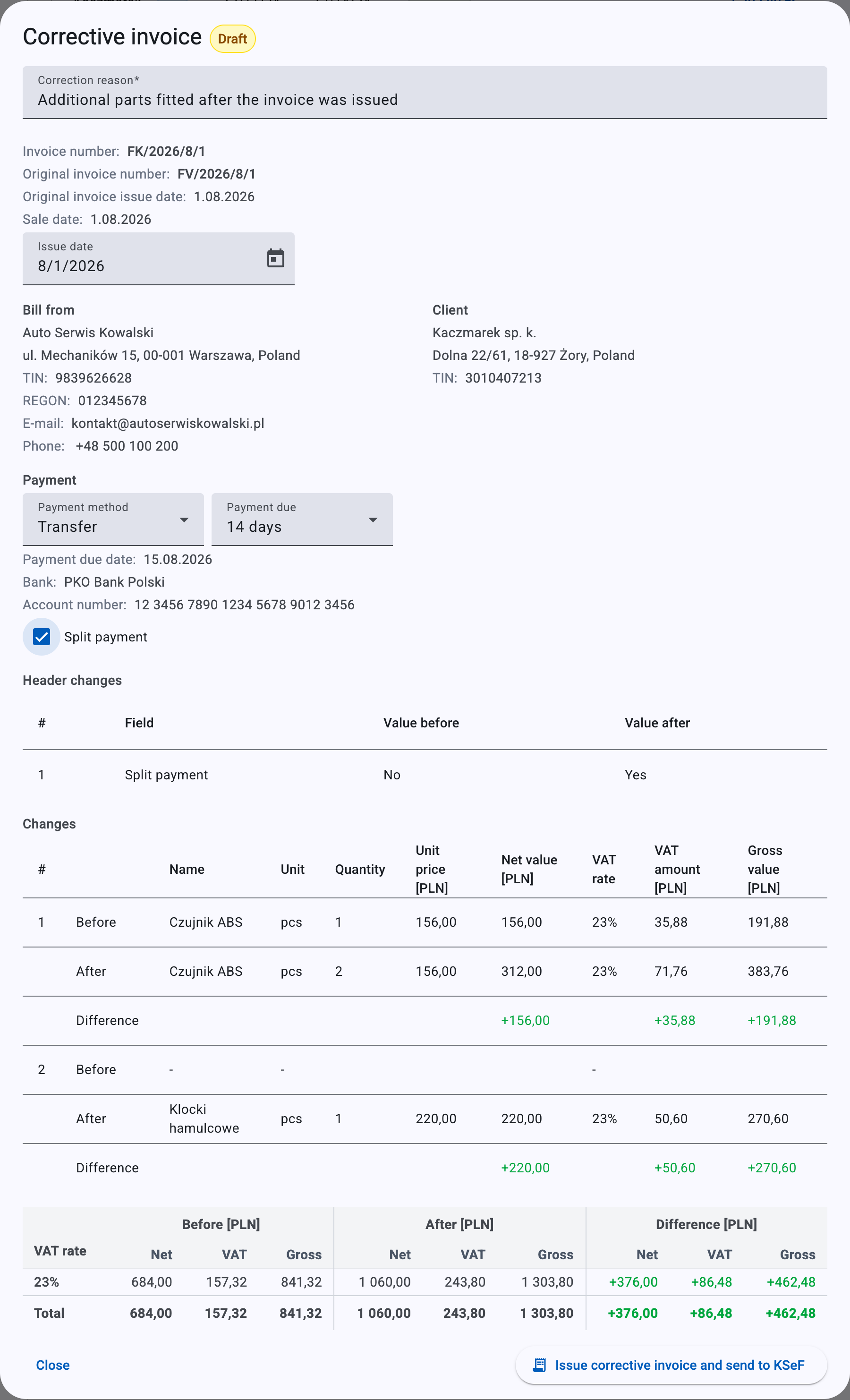
A corrective invoice documents a change to an invoice you have already issued and that KSeF has already accepted, when the costs or working time on the event changed afterwards. It records what was on the earlier invoice before, what it is after, and the difference — and kweno.app builds it for you automatically. You never re-type the whole invoice; you mainly supply a reason for the correction.
When you need a corrective
You issued and sent an invoice for an event, KSeF accepted it, and then something on the event changed — a cost was added, a price was fixed, working time was adjusted, or the client or business data on the event changed. The original invoice is a permanent, KSeF-registered document, so you cannot edit it. Instead, you issue a corrective that carries only the differences.
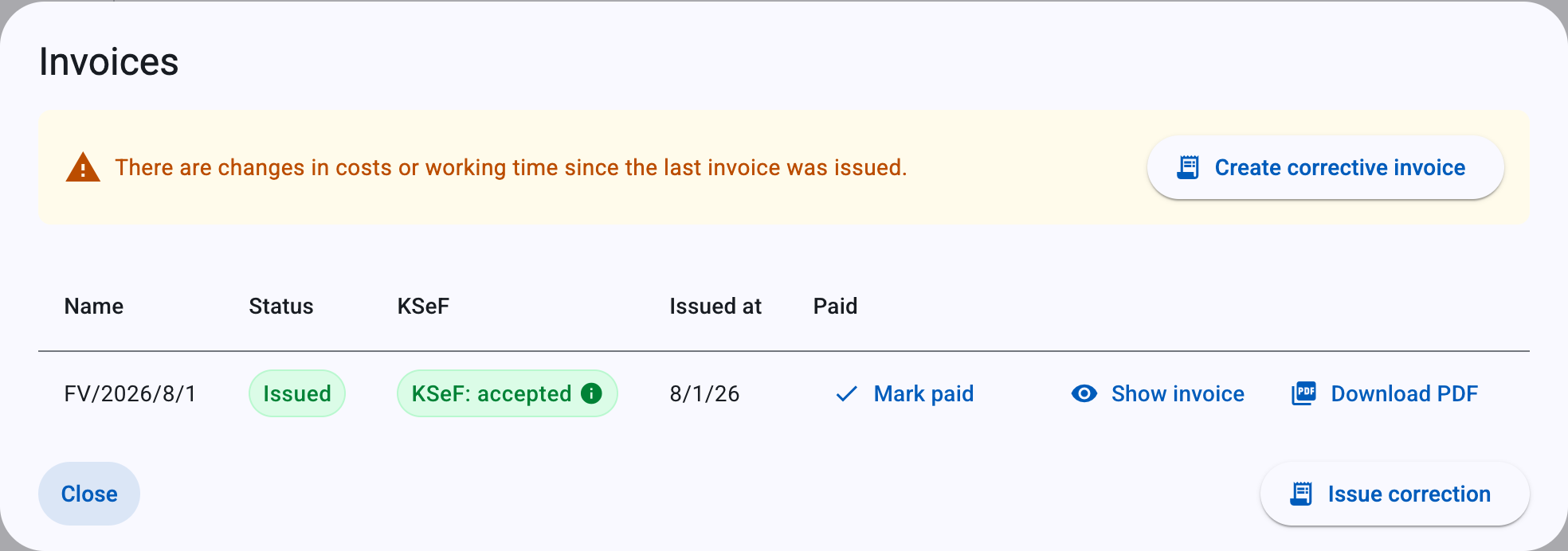
kweno.app tells you when this applies. Open the event's Invoices dialog (see Invoices & KSeF). If there are unbilled changes and at least one accepted invoice already exists, an amber banner appears:
There are changes in costs or working time since the last invoice was issued.
The banner carries a Create corrective invoice button. The same corrective flow is also reachable from the Issue correction button in the dialog's action bar whenever a corrective is available for the event.
Note
The corrective is generated from the event's current state — its current costs, working time, and the current business and client data — compared against the last accepted invoice. You do not hand-enter the line-by-line changes; kweno.app computes them.
When you can correct
You can only issue a corrective after the previous document has been accepted by KSeF. "Previous document" means the original invoice, or — if you have already corrected this event before — the last corrective. Until that document is accepted, the Create corrective invoice / Issue correction button is disabled and a tooltip explains why.
| Situation | Tooltip on the disabled button |
|---|---|
| The original invoice has not been accepted by KSeF yet (no accepted document exists) | 'Original invoice has not been accepted by KSeF yet' |
| The last document is a corrective that has not been accepted by KSeF yet | 'Previous corrective invoice has not been accepted by KSeF yet' |
- Corrections chain: each new corrective corrects the last accepted corrective (or the original if there are none). Wait for each corrective to be accepted before issuing the next one.
- Business data must be configured and a valid KSeF online certificate must be in place, exactly as for a regular invoice.
The one exception: a rejected corrective
If the last document is a corrective that KSeF rejected, you can create a new corrective straight away. A rejected corrective was never registered in KSeF, so it is discarded and the new one is built from the last accepted state instead. This is the only case where you don't have to wait for acceptance first.
Create a corrective draft
- In the event's Invoices dialog, click Create corrective invoice (on the amber banner) or Issue correction (in the action bar).
- A short progress dialog titled Generating corrective draft invoice appears while kweno.app compares the current event against the last accepted invoice and builds the draft.
- On success it closes on its own and immediately opens the corrective preview, where you review the changes and issue the document.
The preview dialog is titled Corrective invoice and carries a status pill: Draft (yellow) while it has not been issued, then Issued (green) once you issue it, plus a KSeF status badge once it is sent. While it is a draft — and not KSeF-rejected — the dialog is editable. Once issued, it becomes read-only.
Note
If the gross total is at least PLN 15,000 and you are a VAT payer, an advisory banner reminds you to check the split payment mechanism: 'The gross amount of the invoice exceeds PLN 15,000 — check whether the invoice is subject to the split payment mechanism (MPP).' It does not block issuing.
Correction reason
The Correction reason is the main thing you fill in. It is a free-text field describing why you are correcting the invoice.
| Field | What it is | Notes |
|---|---|---|
| Correction reason | Free-text explanation of the correction | Required. Maximum 256 characters. Starts empty on a fresh draft. |
You cannot issue the corrective until the reason is filled in and within the 256-character limit.
What the correction shows
The dialog lays out the earlier document, this corrective, and the difference between them. You review these to confirm the correction is right before issuing.
Header changes

If any header (non-line) values changed, a Header changes table lists them. Each row shows one changed field with its old and new value:
| Column | Content |
|---|---|
| # | Row number |
| Field | The field that changed |
| Value before | The value on the previous accepted invoice, or '—' if empty |
| Value after | The value on this corrective, or '—' if empty |
Header changes are detected automatically when the draft is generated — for example a changed Sale date, Seller business name, seller or buyer address, Seller TIN / Buyer TIN, bank details, or subordinate-unit details. In addition, edits you make in the dialog are recorded here: toggling Split payment adds a Split payment row (its before/after values show as Yes / No), and changing the VAT exemption preset adds a VAT exemption preset row.
Entry (line) changes
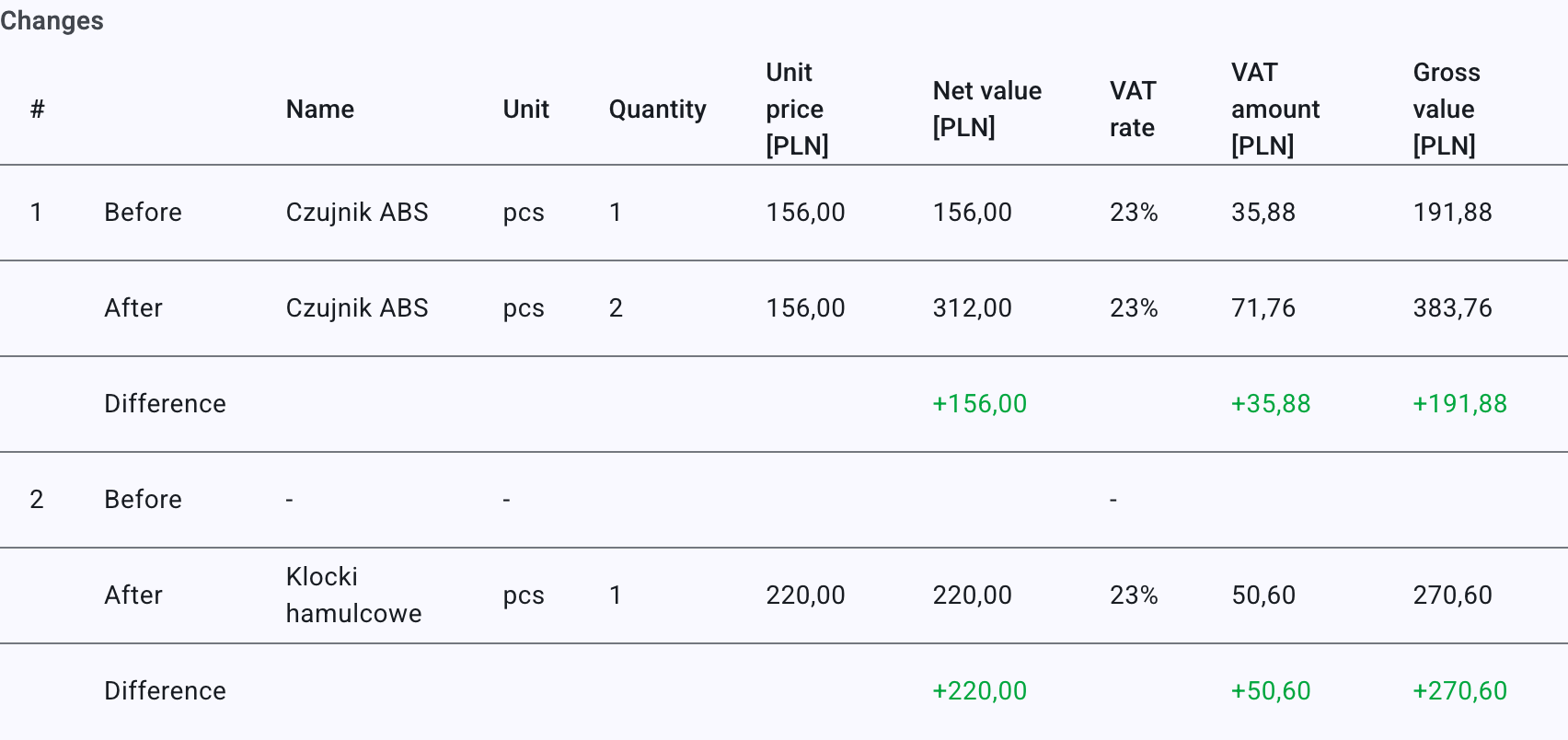
Where a line item changed, a Changes table shows the affected line across three sub-rows:
- Before — the line as it was on the previous accepted invoice (or a dash if the line is newly added).
- After — the line on this corrective (or a dash if the line was removed).
- Difference — the signed change in Net value, VAT amount and Gross value. Increases are shown with a
+prefix in green; decreases in red.
For a VAT payer the table carries the money and VAT columns (Unit price, Net value, VAT rate, VAT amount, Gross value). For a non-VAT payer the VAT columns are dropped and the money column is headed Value.
VAT summary before / after / difference

Below the line changes, a summary compares the VAT totals. For a VAT payer it has three column groups — Before, After and Difference — each broken into Net, VAT and Gross, with a row per VAT rate that has a non-zero value (for example 23%, 8%, 5%, 0% KR, 0% WDT, 0% EX, np II, Exempt) and a bold Total row. The difference column again uses the green + / red convention. For a non-VAT payer the summary is a single Before / After / Difference comparison with one bold Total row of gross values.
Info
When an issued corrective has a positive gross difference, an Additional payment block is shown, repeating the payment details and a bold Additional payment amount equal to that difference — this is what the client still owes as a result of the correction.
Dates
A corrective has two dates, and they behave differently:
| Field | Editable? | Notes |
|---|---|---|
| Sale date | No | Carried over from the original invoice. A corrective keeps the original's sale date; you cannot change it. |
| Issue date | Yes (in draft) | Defaults to today. Must fall within the allowed window below. |
The dialog also shows the Original invoice number, the Original invoice issue date and this corrective's own Invoice number (auto-generated — see Numbering) as read-only references.
Because the sale date is fixed, the Issue date window is anchored to it. Two validation messages can appear in a red box:
The issue date cannot be earlier than 30 days before the sale date. Set the issue date to 6/26/26 or later, or change the sale date.
The issue date cannot be later than the 15th day of the month following the month of sale. Set the issue date to 8/15/26 at the latest, or change the sale date.
Each message names the computed earliest or latest allowed date, in your locale's format; the dates above are the ones you would see for a sale date of 26 July 2026. While either message is shown, you cannot issue the corrective.
Warning
The corrective's sale date is not editable, so if the issue date falls outside the window you can only fix it by choosing a different issue date — there is no "change the sale date" option here, unlike on a regular invoice.
Issue and send to KSeF
When the draft is ready, the primary button is:
Issue corrective invoice and send to KSeF
It stays disabled until all of these hold:
- The Issue date is valid (within the window above).
- The Correction reason is filled in and at most 256 characters.
- There is at least one real change — a line change, a header change, a toggled split payment, or a changed VAT exemption. A corrective with no changes cannot be issued.
- If a VAT exemption is required (the invoice has exempt lines, or you are not a VAT payer), a VAT exemption preset must be selected.
Clicking it issues the corrective — its pill changes to Issued — and sends it to KSeF. From there it moves through exactly the same KSeF states as a regular invoice, shown by the same status badge, and you can download the UPO and PDF once it is accepted. See KSeF statuses for what each state means.
Issuing and submitting are one step, so an issued corrective is always already queued for KSeF. The only send control you can use afterwards is Retry, which appears when the KSeF status is error. A Close button is always present.
Note
Sending a corrective to KSeF also requires the original invoice to still be accepted by KSeF; otherwise the send is refused.
Numbering
Correctives are numbered independently of regular invoices. In Invoicing you set a Corrective invoice prefix and it uses that prefix with its own sequential counter, following the same Numeration scheme as your regular invoices.
The corrective prefix is required (maximum 20 characters) and must differ from your regular Invoice prefix. If they match, both fields show:
Prefixes must be different
Example
With a corrective prefix of K and the Number / Month / Year numeration in July 2026, the first corrective number is K/1/07/2026, and correctives count up on their own sequence — separate from your regular invoices, which keep their own prefix and counter.
Troubleshooting
If kweno.app cannot build the corrective, the Generating corrective draft invoice dialog stops and shows an error with a Close button:
Failed to generate corrective invoice. An unexpected error occurred. Please try again later.
If you see this, close the dialog and try again. If it keeps happening, confirm that the previous document is still KSeF-accepted and that there really are changes on the event since the last invoice.
Related
- Invoices & KSeF — issuing and sending the original invoice.
- Events — the costs and working time that drive a correction.
- Invoicing — the corrective prefix, numeration and examples.
- KSeF statuses — what each KSeF state means.