Working time
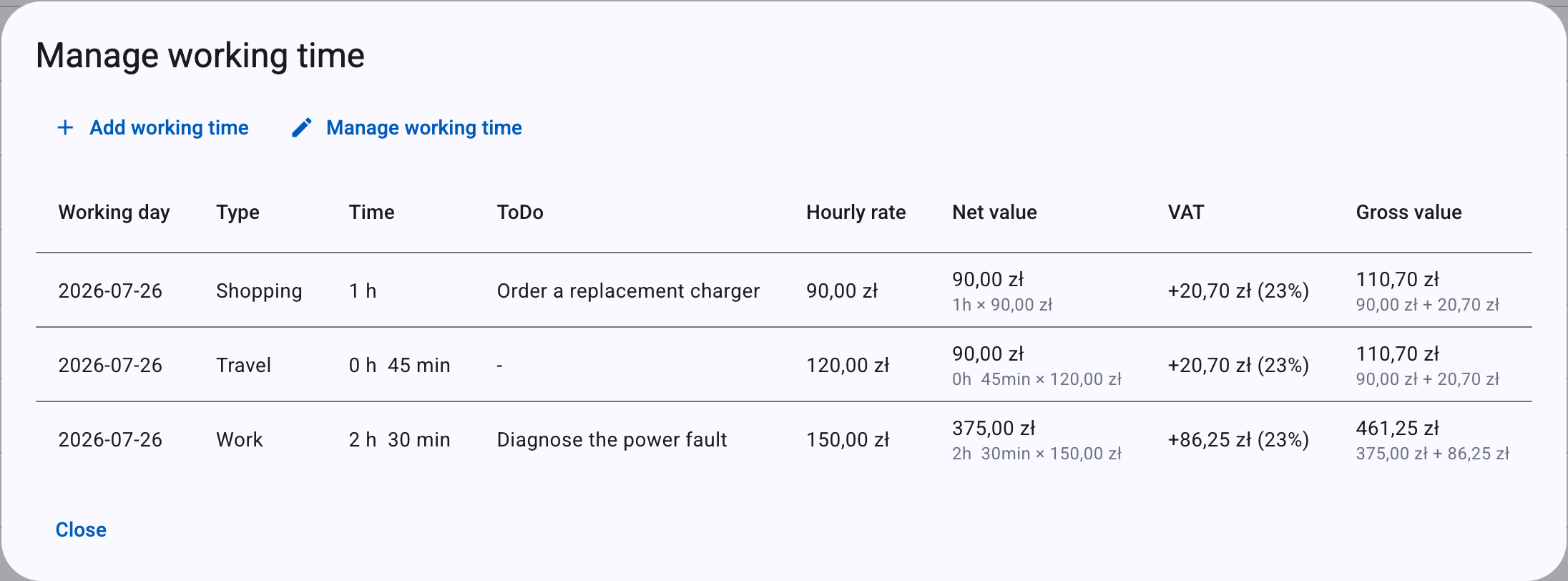
Working time is the labour you log against an event — recorded by Type and duration at an Hourly rate. kweno.app turns each entry into a billable line, so working time is invoiced side by side with your Costs when you generate an invoice. Use it whenever you want a job to charge for your time, not just for parts and materials.
What working time is
A working-time entry captures how long you spent on one part of a job, what kind of work it was, and how much you charge per hour. kweno.app multiplies the duration by your hourly rate to produce a net value, adds VAT where it applies, and carries that value straight into the draft invoice.
Working time lives inside an event, alongside costs and to-dos. You open it from the event list: each event exposes a working-time button that shows the summed time, for example 5 h 30 min (the minutes are hidden when they are zero). Clicking it opens the Manage working time dialog.
Note
The management dialogs show per-row values only. There is no totals or footer row inside them — the only aggregate you see for an event's working time is the summed time on the event-list button face. Combined totals appear later, in the invoice preview.
Add working time
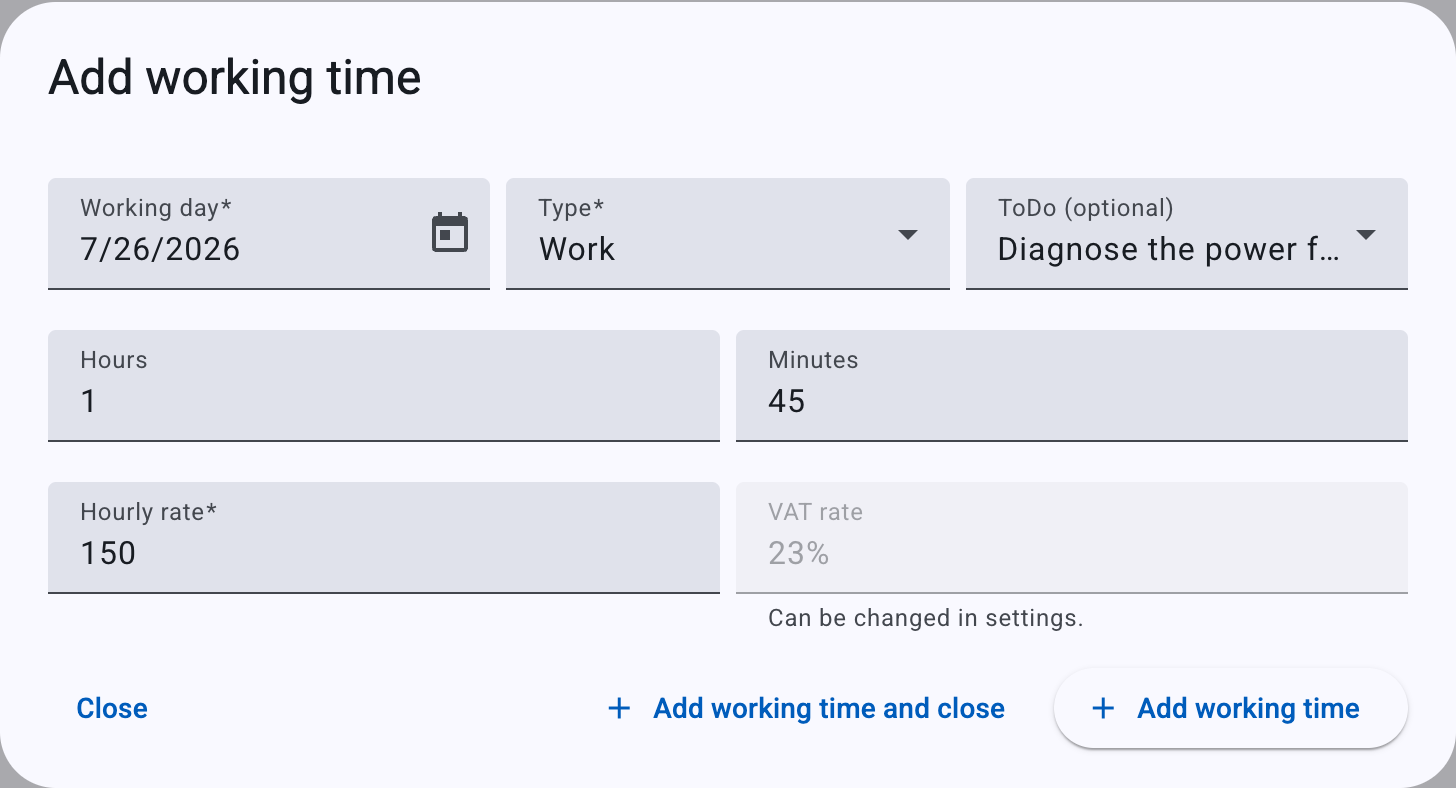
- Open the event and click the working-time button to open the working-time dialog. Its title reads Manage working time when entries already exist, or Working time when the event has none yet.
- Click Add working time. The Add working time dialog opens.
- Fill in the fields below.
- Save with one of the footer buttons:
- Add working time and close — saves the entry and closes the dialog.
- Add working time — saves the entry and clears the form so you can add another straight away, keeping the dialog open. The Working day resets to today.
Tip
Right after you add the very first entry to a previously empty event, a shortcut button Go to working time list appears, so you can jump straight to the list of entries.
Fields
| Field | What it is | Notes |
|---|---|---|
| Working day | The date the work was done. | Required. A date picker that defaults to today. |
| Type | The kind of work (see below). | Required. Defaults to Work. Choosing a type auto-fills the Hourly rate and sets the VAT rate for new entries. |
| ToDo (optional) | Links this entry to a to-do item on the event. | Only appears when the event has at least one to-do. Options are None plus each to-do's text. See To-dos. |
| Hours | Whole hours worked. | Optional. Accepts 0 to 23; the field will not accept a value above 23. Offers quick suggestions (0, 1, 2, … 16). Left blank, it is saved as 0. |
| Minutes | Minutes worked. | Optional. Accepts 0 to 59. Offers quick suggestions of 0, 15, 30 and 45. Left blank, it is saved as 0. |
| Hourly rate | Your charge per hour, in PLN. | Required. Up to 2 decimal places. Pre-filled from the default rate for the chosen Type when a default exists; otherwise you type it. |
| VAT rate | The VAT rate that will apply (VAT payers only). | Read-only — see VAT on working time. |
The net value of the entry is the hourly rate applied to the total duration (hours plus minutes). An entry of 1 h 30 min at 100.00 PLN/h is a net value of 150.00 PLN.
Note
At least one of Hours or Minutes must add up to real time for the entry to be worth billing. If both are left blank the entry is saved as zero duration and contributes nothing to the invoice total — see Troubleshooting.
Working-time types
Every entry has a Type. The type determines which default hourly rate is pre-filled and, for VAT payers, which VAT rate applies.
| Type | Use it for |
|---|---|
| Work | The main hands-on labour of the job. This is the default. |
| Travel | Time spent travelling to or from the job. |
| Shopping | Time spent buying parts or materials. |
| Estimation | Time spent preparing an estimate or quote. |
| Other | Anything that does not fit the categories above. |
VAT on working time
Working-time entries behave differently from costs when it comes to VAT.
- On a cost, you pick the VAT rate yourself from a dropdown.
- On a working-time entry, there is no VAT-rate selector. The VAT rate is derived automatically from the per-type default you set in Settings.
If you are a VAT payer, the Add working time dialog shows a read-only VAT rate field. It displays the rate that will apply for the Type you chose, and it updates when you change the type. Below it you will see the hint:
Can be changed in settings.
That hint points you to Default working time rates — the only place the working-time VAT rate can be changed.
The read-only VAT rate field shows the per-type default. The table columns include separate Net value, VAT and Gross value. Gross value is the net value plus VAT.
No VAT field is shown at all. Every working-time entry is automatically assigned the Exempt VAT rate, no VAT amount is computed, and the value column is simply headed Value (equal to the net value). This follows from your VAT-exemption setting in Business data; the hint there reads VAT rate will default to "Exempt" when adding costs and working time.
For the full list of VAT rates and what each code means, see VAT rates & exemptions.
Default working time rates (Settings)
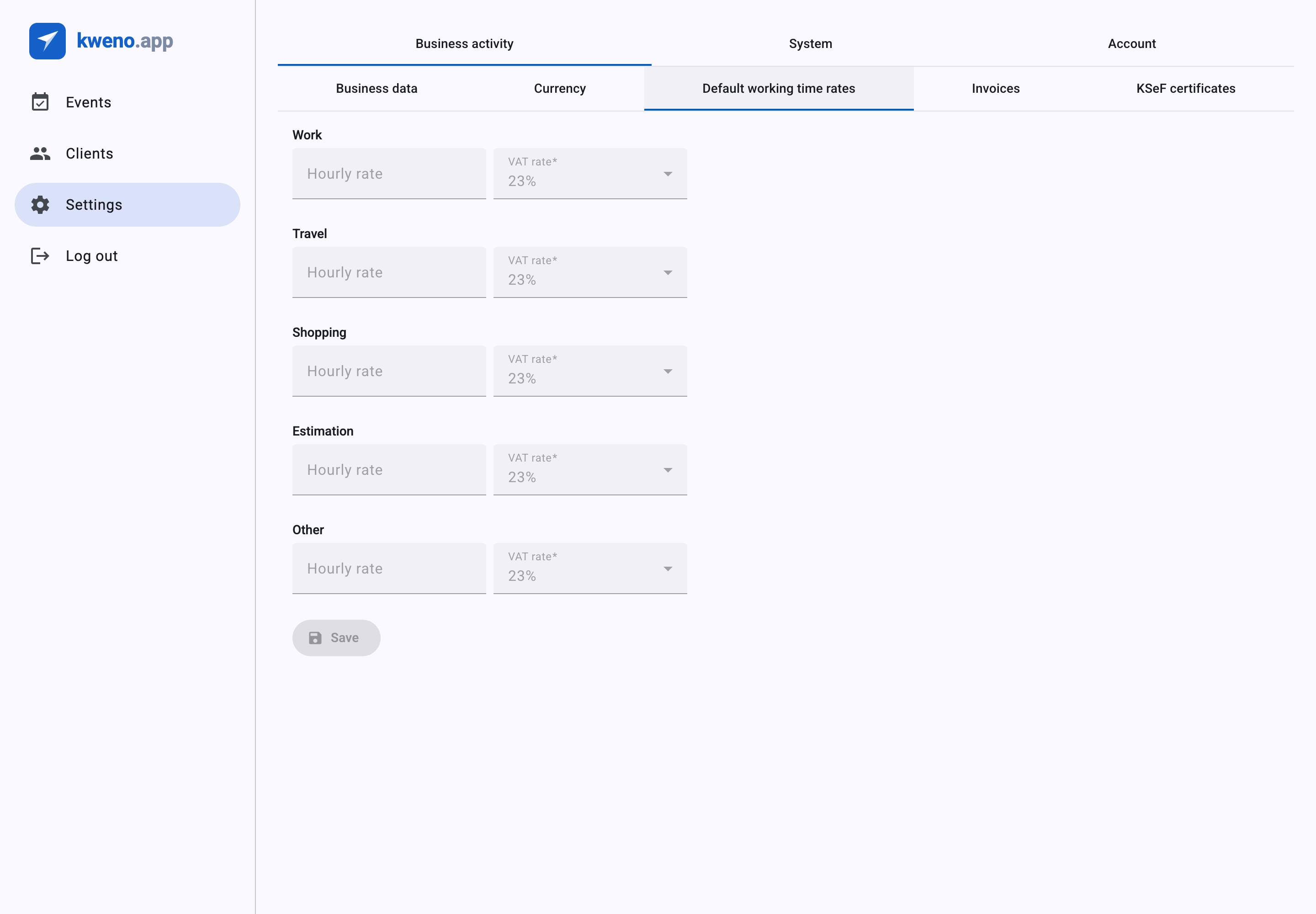
kweno.app lets you set a default hourly rate per working-time type, so new entries are pre-filled and you don't retype the same rate on every job. For VAT payers, each type also carries a default VAT rate — this is the rate the read-only VAT rate field shows when you add working time.
You configure these under Settings, in the Default working time rates tab. There is one set of defaults per account.
The tab has five sections, one per type, each with its own heading:
- Work
- Travel
- Shopping
- Estimation
- Other
Fields per type
| Field | What it is | Notes |
|---|---|---|
| Hourly rate | The default charge per hour for this type, in PLN. | Optional — may be left empty. Up to 2 decimal places. When empty, new entries of that type start with a blank rate and you must type one. |
| VAT rate | The default VAT rate for this type (VAT payers only). | Shown only when your business is a VAT payer. Required when shown; defaults to 23%. |
VAT-rate options for defaults
For VAT payers, the VAT rate select for each type offers:
- 23%
- 8%
- 0% – domestic sale (0 KR)
- 0% – intra-community supply / WDT (0 WDT)
- 0% – export outside EU (0 EX)
- np – services for EU companies, reverse charge (np II)
- Exempt
Note
The 5% rate is not offered for default working-time VAT — even though it is available when you add a cost. Working-time VAT is limited to the rates listed above.
If your business is not a VAT payer, the VAT selects are hidden and all five types are forced to Exempt.
Changing and clearing rates
- Type a new value into any Hourly rate field, or pick a VAT rate.
- Click Save to store all five rates and their VAT rates together. The button is disabled while the form is invalid, saving, or still loading.
To clear a single rate back to empty, use the small clear button (✕) that appears at the end of a rate field once it has a value. Clicking it clears just that one field.
There is no \"Restore default\" button
The Default working time rates tab has no button that resets every field at once. The only reset control is the per-field clear button described above — it clears one rate field at a time.
Info
Changing a default affects only new working-time entries you add afterwards. Existing entries keep the rate and VAT they were saved with. Likewise, switching your VAT-payer status in Business data resets these VAT selectors — to Exempt when you are not a VAT payer, to 23% when you are.
Edit or delete
To change or remove existing entries, open the working-time dialog and turn on edit mode:
- Click Manage working time in the dialog header. This reveals per-row action buttons. (Click Show working time to turn edit mode off again; it is disabled when there are no entries.)
- On the row you want to change, click Edit working time. The Edit working time dialog opens with the entry's values.
- Adjust the fields and click Save working time.
To remove an entry, click Delete working time on its row.
Deletes are immediate
Deleting a working-time entry happens straight away — there is no confirmation prompt. Make sure you have the right row before you click.
Troubleshooting
Working time (together with costs) is what makes an event billable. When you generate a draft invoice, these validation messages can block it:
Total value is zero
If your event has working-time entries (or costs) but their combined gross value comes to exactly 0 — for example every hourly rate or duration is zero — invoice creation is blocked with:
Total value of costs and working time is zero. Update prices so that at least one entry has a non-zero value.
Fix it by editing an entry so it has real time and a non-zero Hourly rate, then try again.
If the event has no working time and no costs at all, you will instead see:
The event has no costs or working time entries. Add at least one cost or working time entry.
Add at least one working-time entry (or a cost) before invoicing. For the full invoicing flow, see Invoices & KSeF.
Related
- Costs — the other billable item type on an event.
- Events — where working time is recorded and managed.
- Invoices & KSeF — how working time and costs become invoice lines.
- VAT rates & exemptions — what each VAT code means.
- Business data — your VAT-payer status and exemption preset.