Invoices & KSeF
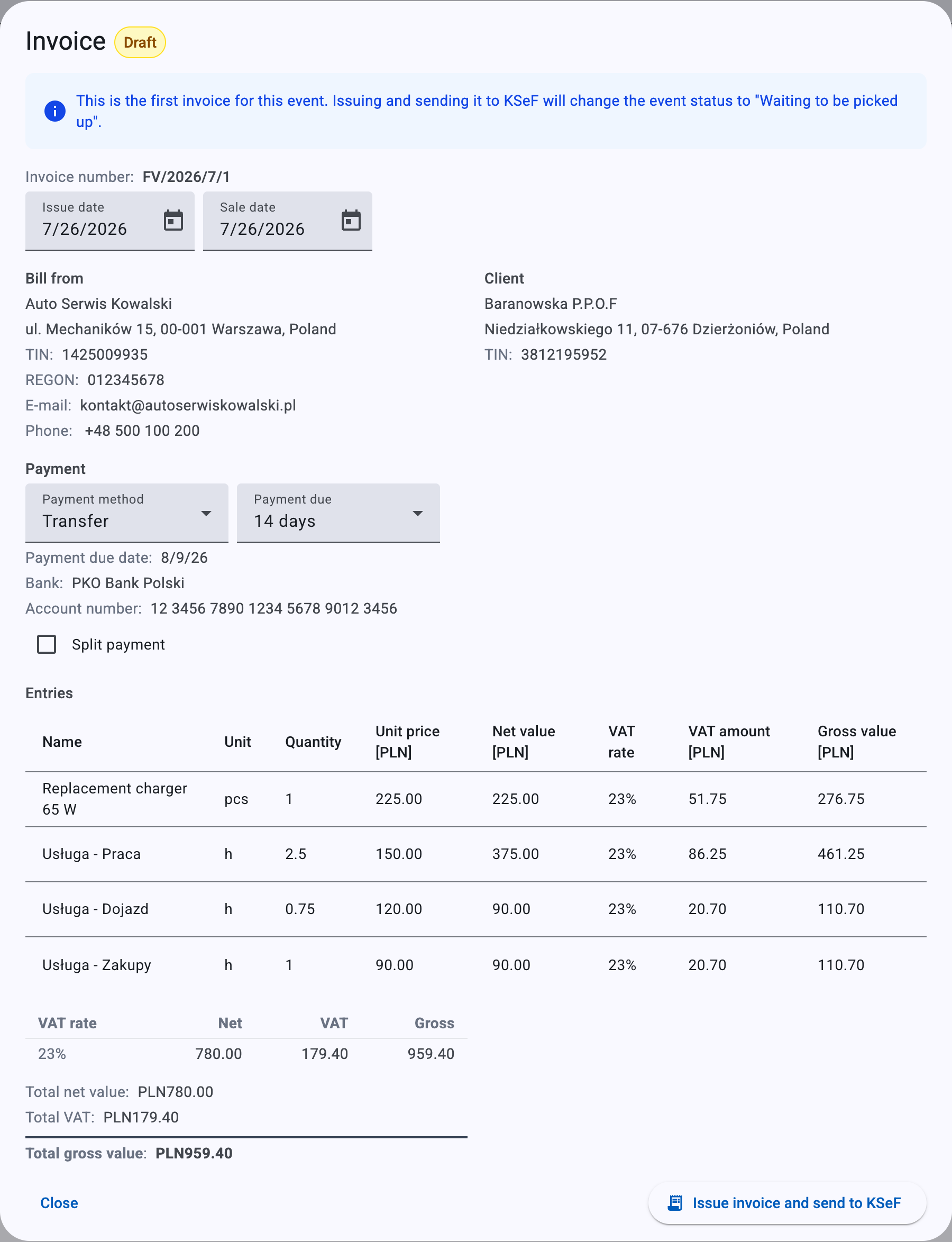
An invoice bills a client for the work recorded on an Event and submits it to KSeF, Poland's National e-Invoicing System, in the FA(3) structured format. This page walks the full lifecycle: turning an event into a draft, reviewing every field, issuing and sending to KSeF, reading the result, downloading documents, and tracking payment. It is the most detailed guide in these docs.
Invoices are managed per event. From an event you open the Invoices dialog, which lists every invoice already issued for that event and is where you start a new one. The full review-and-issue screen is the Invoice dialog.
Before you can invoice
kweno.app checks a set of prerequisites the moment you start generating a draft. If any check fails, the Generating draft invoice dialog shows a bulleted list of the failing messages with only a Close button — no draft is created. Fix the underlying problem, then try again.
The client-side checks and their exact messages are:
| What must be true | Message shown if it is not |
|---|---|
| Your business data is configured | "Business data is not configured. Go to Settings and fill in your business data." |
| The client has a complete address | "The client has incomplete address data. Fill in street, zip code, city and country for the client." |
| The event has at least one cost or working-time entry | "The event has no costs or working time entries. Add at least one cost or working time entry." |
| The total value of those entries is not zero | "Total value of costs and working time is zero. Update prices so that at least one entry has a non-zero value." |
| The request completes | "Failed to generate invoice. An unexpected error occurred. Please try again later." |
In addition, a KSeF certificate must be set up before you can issue. Generating a draft does not need it, but the Issue invoice and send to KSeF action will fail without an online certificate configured. There is no friendly on-screen message for a missing certificate in the invoice flow, so treat it as a setup step you complete in advance.
Note
A complete client address means all four of street, zip code, city and country are filled in. For company clients these fields are required anyway, because they are needed for invoicing. See Clients.
Set up once, invoice many times
Do the one-time setup first: Business data, Invoicing prefixes and numeration, and KSeF certificates with a passing connection test. After that, every event can be invoiced in a few clicks.
The entries that will appear on the invoice come straight from the event's Costs and Working time, so make sure those are complete and priced before you generate the draft.
Generate a draft
- Open the event's Invoices dialog. If the event has no invoice yet, the empty state reads "No invoice has been issued yet."
- Start invoice generation for the event. The Generating draft invoice dialog appears while kweno.app builds the draft.
- When the prerequisites pass, the dialog closes and the Invoice dialog opens with your new draft ready to review.
- The draft is where you check everything before issuing. Nothing is sent to KSeF at this stage.
Only one untouched draft exists per event at a time — generating again replaces the previous pristine draft. You can generate a new draft only when the event has no current invoice, or when the current invoice's KSeF status is rejected (a rejected invoice reverts to Draft status but is read-only; Issue invoice then generates a fresh draft).
How the invoice lines are built
kweno.app turns the event's costs and working time into invoice lines automatically:
- Each cost becomes one line, carrying its name, unit, quantity, unit price, net value, VAT rate, VAT amount and gross value. Costs whose gross value is zero are dropped.
- Working time is grouped by type, and each group becomes a single aggregated line measured in hours. The service lines are labelled per type, always in Polish regardless of interface language:
Usługa - Praca,Usługa - Dojazd,Usługa - Zakupy,Usługa - Wycena,Usługa - Inne. The quantity is the group's total time converted to hours, and the unit price is the group's net value divided by those hours. - If a working-time group mixes several VAT rates, its aggregated line falls back to the Exempt rate. Groups with zero gross value are dropped.
If every cost and working-time group is dropped, generation fails — this is the "Total value of costs and working time is zero" case above.
Who is billed
An invoice always has a seller (you) and a buyer. The buyer block is labelled Client and shows the client's name, address and, where present, their TIN.
If the client has a subordinate unit attached, a Recipient sub-block appears beneath the client. It names the subordinate unit and shows either its IDWew (the unit's internal KSeF identifier) or its own TIN. Use a subordinate unit when the invoice is addressed to a specific organizational unit inside a larger entity — for example a single school within a municipality. Subordinate units are set up on the company client. See Clients.
Seller details
The seller block is labelled Bill from. It is a snapshot taken from your Business data at the moment the draft is created, and it shows:
- Business name
- Address as street, zip code and city, then country
- TIN
- Optionally REGON, E-mail and Phone
The seller snapshot is frozen
The Bill from details are captured when the draft is created. Editing your business data in Settings afterwards does not change an invoice that has already been issued. Update your business data before invoicing if the details have changed.
Invoice lines
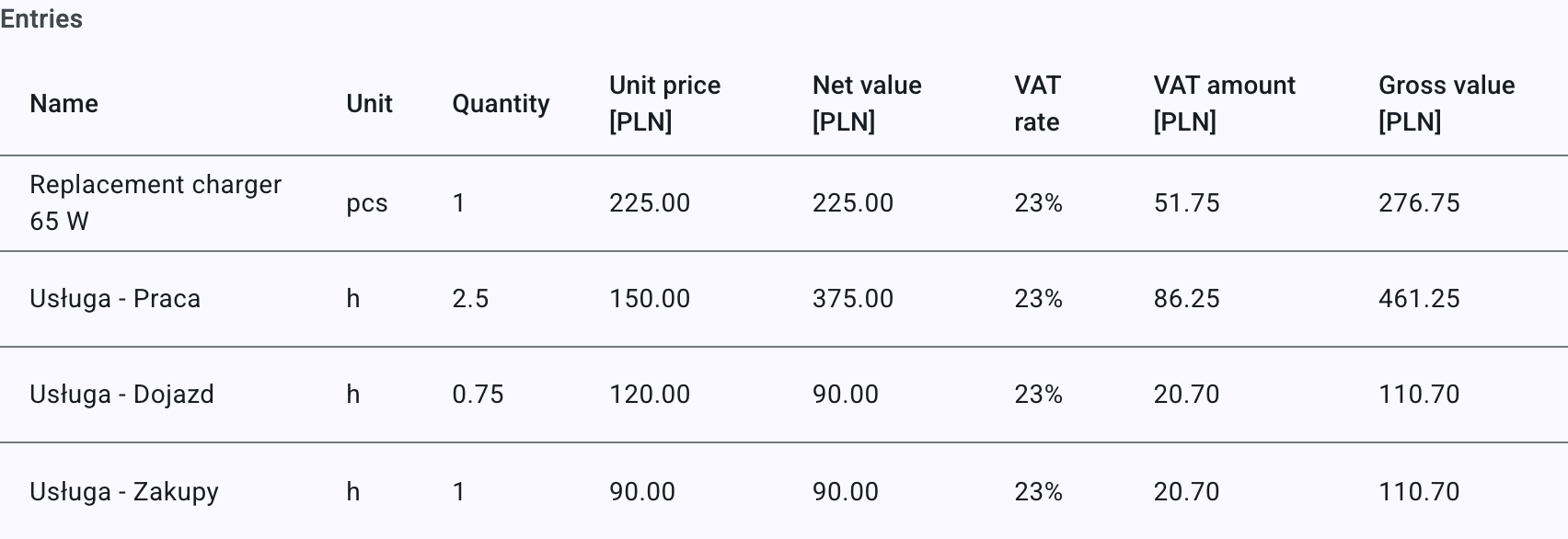
The entries table lists every line built from the event. Its columns depend on whether you are a VAT payer:
- VAT payer: Name, Unit, Quantity, Unit price, Net value, VAT rate, VAT amount, Gross value.
- Not a VAT payer: Name, Unit, Quantity, Unit price, and a single Value column in place of the net/VAT/gross columns.
Each column that shows money includes the currency in its header. The lines are read-only on the invoice — to change what appears, edit the underlying Costs or Working time and generate a fresh draft.
VAT
Line-level VAT rates
Each line carries a VAT rate, shown as a short badge:
| Badge on the line | Meaning |
|---|---|
| 23%, 8%, 5% | Standard Polish rates. |
| 0% KR | Zero-rated domestic sale. |
| 0% WDT | Zero-rated intra-community supply (WDT). |
| 0% EX | Zero-rated export outside the EU. |
| np II | Reverse charge — services for EU companies. No VAT amount is calculated. |
| Exempt | VAT-exempt. No VAT amount is calculated. |
For the np II and Exempt rates no VAT amount is computed, and the gross value equals the net value. For a full explanation of every rate, when to use it, and the exemptions behind Exempt, see VAT rates & exemptions.
VAT exemption
A VAT exemption section appears when the invoice needs a legal basis for exemption — that is, when at least one line is Exempt, or when you are not a VAT payer. In a draft you must choose a VAT exemption preset from the grouped list; while none is chosen, the issue button stays disabled. On a read-only invoice the chosen basis is shown as Legal basis, or Not specified if none was set.
- If you are a VAT payer, only the subject-matter exemption groups are offered.
- If you are not a VAT payer, the small-business turnover-limit exemptions are offered as well.
The full list of presets and their legal references lives in VAT rates & exemptions.
VAT summary

Below the lines, VAT payers see a summary table with columns VAT rate, Net, VAT and Gross, one row per rate group in use (rows for the zero and reverse-charge codes show a dash in the VAT column). Under it:
- Total net value
- Total VAT
- Total gross value (in bold)
If you are not a VAT payer, the summary collapses to a single bold Total line with no VAT breakdown.
Payment
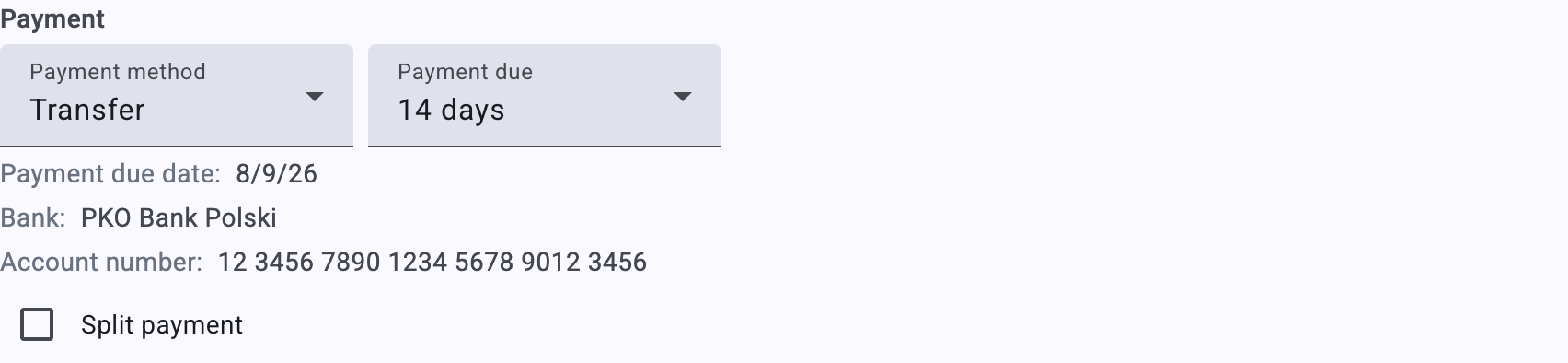
The Payment section sets how and when the client pays. Its fields adjust to the payment method you pick.
Payment method
Choose one Payment method. The available options are exactly:
- Cash
- Card
- Voucher
- Check
- Credit
- Transfer
- Mobile
The default comes from the default payment method in your business data. For guidance on each method see Payment methods.
Payment due
The Payment due term selector appears only when the method is Transfer or Check. It offers the presets 7 days, 14 days, 30 days and 60 days. Once set, a read-out Payment due date shows the issue date plus that many days. If you leave it unset, the payment due date is the issue date.
Bank details and split payment
- The Bank and Account number fields appear only when the method is Transfer.
- The Split payment checkbox appears only when the method is Transfer and you are a VAT payer. Switching the method away from Transfer clears it.
Split payment (MPP) warning
When you are a VAT payer and the invoice's total gross value reaches PLN 15,000 or more, an amber banner appears at the top of the draft:
Split-payment mechanism
"The gross amount of the invoice exceeds PLN 15,000 — check whether the invoice is subject to the split payment mechanism (MPP)."
This banner is advisory. It does not block you from issuing — it reminds you to check whether the split payment mechanism applies and, if so, to tick Split payment.
In read-only mode the payment read-out shows the Payment method, the Payment due (for Transfer/Check), Bank and Account number (Transfer), Split payment as Yes or No (Transfer and VAT payer), and a bold To pay with the total gross.
Dates
A draft shows two date pickers: Issue date (defaults to today) and Sale date (carried from the draft). The rule is about the gap between them: the issue date must fall inside a window anchored to the sale date.
| Window edge | How it is computed |
|---|---|
| Earliest issue date | The sale date minus 30 calendar days. |
| Latest issue date | The 15th day of the month following the month of sale. For a December sale that is 15 January of the next year. |
Example
For a sale date of 7/26/2026, the issue date may be anywhere from 6/26/26 to 8/15/26.
When the issue date falls outside that window, both pickers are flagged, the issue button is disabled, and one of two messages appears in a red box. Each names the computed window edge, in your locale's format — below, for the same sale date as in the example:
Issue date too early

"The issue date cannot be earlier than 30 days before the sale date. Set the issue date to 6/26/26 or later, or change the sale date."
Issue date too late
"The issue date cannot be later than the 15th day of the month following the month of sale. Set the issue date to 8/15/26 at the latest, or change the sale date."
As each message says, there are two ways out: move the issue date into the window, or change the sale date, which moves the window itself.
Numbering
The Invoice number is generated for you from your Invoicing settings — your invoice prefix plus a sequence number laid out according to your chosen numeration scheme, grouped by the month and year of the issue date. Sequence numbers reset per numeration group (for example, per month or per year). You cannot type the number by hand.
Example
With prefix P and the Number / Month / Year scheme, an invoice issued in July 2026 might be numbered P/7/7/2026. With Year / Number it would be P/2026/7.
Each issued invoice number is unique. If a number collision occurs at the moment of issuing, the action fails and you can simply issue again to take the next free number.
Issue and send to KSeF
When the draft is ready, a single action does everything:
Issuing is a real submission
The button Issue invoice and send to KSeF issues the invoice and queues it for KSeF in one step — there is no separate send. Review every field first: parties, lines, VAT, payment, and dates.
Clicking it:
- Turns the draft into a final invoice — the status pill changes from Draft to Issued.
- Sets the KSeF status to pending and starts the submission.
- Closes the dialog and returns you to the issued invoice.
The button is disabled while issuing is in progress, while either date is invalid, or while a required VAT exemption preset has not been chosen.
First-invoice event status change
When this is the event's first invoice and the event is still at an early status (New, In progress, or Waiting for parts), a blue banner previews a side effect:
"This is the first invoice for this event. Issuing and sending it to KSeF will change the event status to \"Waiting to be picked up\"."
Issuing then moves the event to Waiting to be picked up. See Events.
Retrying after an error
Issuing and submitting cannot be separated: Issue invoice and send to KSeF does both, and an issued invoice enters KSeF status pending immediately and is queued for submission. There is no state in which an invoice is issued but unsubmitted.
The one thing you can trigger by hand is a retry:
- When the KSeF status is error, a Retry button appears in the invoice dialog and re-submits it.
- In every other status there is no send button — kweno.app drives the submission.
KSeF result
After issuing, a KSeF badge tracks the submission. While the status is pending or processing, kweno.app polls automatically and updates the badge; it stops once a final result arrives.
| KSeF status | What it means | What to do |
|---|---|---|
| KSeF: pending | Queued and awaiting submission. | Wait — it updates on its own. |
| KSeF: processing | Submitted; KSeF is processing it. | Wait — it updates on its own. |
| KSeF: accepted | Accepted and registered as an official e-invoice. | Download the UPO and PDF; you can now mark it paid. |
| KSeF: rejected | KSeF rejected the invoice. It reverts to Draft status but stays read-only. | Read the rejection reason under KSeF error, fix the underlying cause, then use Issue invoice to generate a fresh draft and issue again. |
| KSeF: error | A technical error occurred while sending. The invoice stays Issued. | Use Retry to resend. |
For a deeper reference on each status, see KSeF statuses.
Note
A rejection and an error are different. A rejection sends the invoice back to Draft status (read-only) — you re-issue with Issue invoice, which builds a fresh draft. An error leaves the invoice Issued and simply offers Retry — nothing needs correcting, the send just needs another attempt.
Info
The exact text under KSeF error comes from KSeF itself and describes why the invoice was rejected or what went wrong. It is not a fixed kweno.app message, so read it carefully — it tells you what to change before re-issuing.
KSeF details
An information button next to the badge (labelled "Show KSeF details") opens a panel that shows, when available:
- KSeF number — the reference number KSeF assigned to the invoice.
- KSeF acquisition timestamp — the date and time KSeF acquired the invoice.
- KSeF QR code — with a link Open QR verification page that opens the official verification page in a new tab.
- Download UPO — available once accepted (see below).
- KSeF error — the reason text for a rejected or errored invoice.
Documents
Once an invoice is KSeF: accepted, two documents become available:
- Download UPO — downloads the UPO (the official confirmation of receipt) as an XML file. It is available only after acceptance.
- Download PDF — downloads the invoice PDF. The PDF is generated after KSeF acceptance, so the button stays disabled until it is ready.
You can also reopen any invoice read-only with Show invoice, and verify an accepted invoice through the KSeF QR code and its Open QR verification page link described above.
Payment tracking
The Invoices list has a Paid column, but it is active only when the invoice is Issued and its KSeF status is accepted. Until then the cell shows a dash.
- On an unpaid invoice, click Mark paid to record the payment with today's date.
- On a paid invoice, the paid date is shown with an edit icon. Opening it lets you pick a different date and Apply it, or choose Mark as unpaid to clear the paid date.
Warning
You can mark an invoice paid only after KSeF has accepted it. Marking paid is not available for drafts, pending or processing invoices, rejections, or errors.
When costs change after issuing
If you change the event's Costs or Working time after an invoice has been issued and accepted, the Invoices dialog shows an amber banner:
"There are changes in costs or working time since the last invoice was issued."
You do not edit the issued invoice — instead you issue a corrective invoice that records what changed. Use the Create corrective invoice button in the banner. The button may be disabled with a tooltip explaining why (for example, the original or a previous corrective has not been accepted by KSeF yet). The whole corrective flow is covered in Corrective invoices.
Legal annotations
Some VAT rates require a legal annotation on the invoice — for example the 0% and reverse-charge codes. When an invoice carries such annotations, they appear in their own block with each rate and its text, and in a draft you can edit them before issuing. These annotations are carried into the FA(3) document sent to KSeF.
Note
The annotations block and its edit control are shown in Polish ("Adnotacje" / "Edytuj") even in the English interface. That is expected — match those labels on screen.
Troubleshooting
Use these verbatim messages to match what you see and find the fix.
Draft cannot be generated. One of the prerequisite checks failed:
- "Business data is not configured. Go to Settings and fill in your business data." — set up your Business data.
- "The client has incomplete address data. Fill in street, zip code, city and country for the client." — complete the client's address in Clients.
- "The event has no costs or working time entries. Add at least one cost or working time entry." — add at least one Costs or Working time entry.
- "Total value of costs and working time is zero. Update prices so that at least one entry has a non-zero value." — price at least one entry above zero.
- "Failed to generate invoice. An unexpected error occurred. Please try again later." — try again in a moment.
The issue button is disabled. Check for one of these:
- An issue-date error box: "The issue date cannot be earlier than 30 days before the sale date…" — see Dates.
- An issue-date error box: "The issue date cannot be later than the 15th day of the month following the month of sale…" — see Dates.
- A required VAT exemption preset has not been chosen.
- Issuing is still in progress.
Issuing fails after you click the button. The most common cause is a missing KSeF online certificate. Set one up and confirm the connection test passes under KSeF certificates, then issue again.
The invoice shows KSeF: rejected. It has reverted to Draft status but is read-only. Read the reason under KSeF error, fix the underlying cause, then use Issue invoice to generate a fresh draft and issue again. See KSeF statuses.
The invoice shows KSeF: error. The invoice stays Issued. Click Retry to resend.
Mark paid is not available. The invoice must be Issued and KSeF: accepted before you can mark it paid.
Related
- Costs and Working time — the source of every invoice line.
- Clients — buyer address, TIN, and subordinate-unit recipients.
- Events — where invoicing starts and the status the first invoice sets.
- Corrective invoices — how to correct an issued invoice after costs change.
- Business data — the seller snapshot and default payment method.
- Invoicing — invoice prefix and numeration.
- KSeF certificates — required before you can issue.
- VAT rates & exemptions — every rate and exemption preset.
- KSeF statuses — the full status reference.
- Payment methods — the payment method options.