Business data
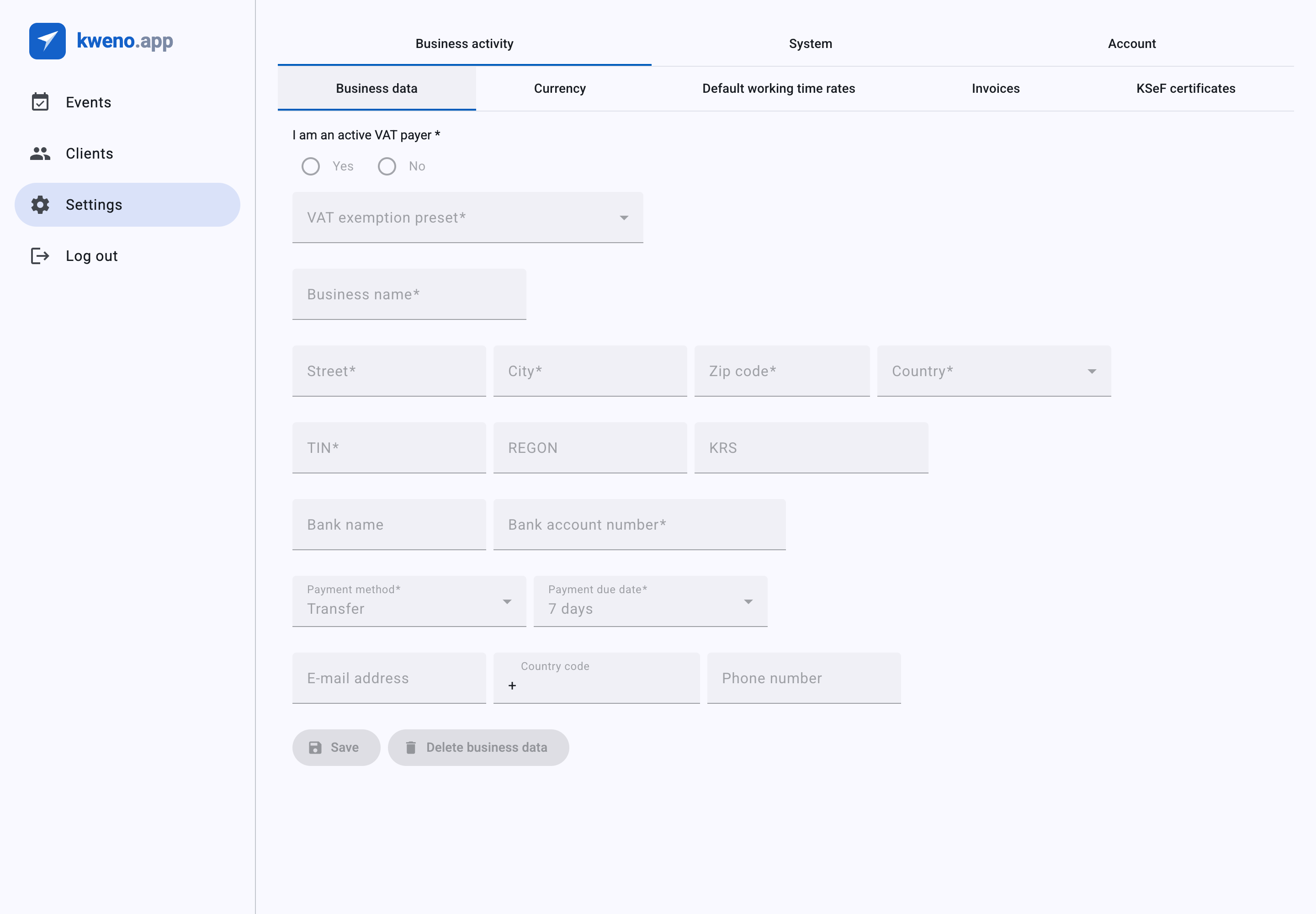
Business data is your own company identity: the name, tax number, address, and bank details that identify you as the seller. kweno.app copies this information onto every invoice you issue and sends it to KSeF, so you must fill it in before you can create any invoice. There is exactly one business-data record for your account — the first time you save it is created, and every save after that updates it.
A hard prerequisite for invoicing
You cannot generate a draft invoice, issue an invoice, or run the KSeF connection test until your business data is saved. If it is missing, invoice creation is blocked with the message: Business data is not configured. Go to Settings and fill in your business data. See Troubleshooting below.
Where to find it
- Open Settings.
- Go to the Business activity tab.
- Select the Business data sub-tab.
The form loads pre-filled with your saved data and stays disabled until it has finished loading. When you are done, use the Save button at the bottom. Save is disabled while the form is invalid.
Fields
The form is organised into a VAT status block, your business identity and address, and your default payment settings. Required fields are marked below; the Save button stays disabled until every required field is valid.
Business identity and address
| Field | What it is | Notes |
|---|---|---|
| Business name | The legal name of your business, shown as the seller on invoices. | Required. Up to 255 characters. |
| TIN | Your Polish tax identification number (NIP). | Required. Exactly 10 digits. |
| Street | Street and building details of your business address. | Required. Up to 255 characters. |
| Zip code | Postal code of your business address. | Required. Polish format NN-NNN — two digits, a hyphen, then three digits, e.g. 00-950. |
| City | City of your business address. | Required. Up to 255 characters. |
| Country | Country of your business address. | Required. The only option is Poland. |
| REGON | Your REGON statistical number. | Optional. 9 or 14 digits. |
| KRS | Your KRS registry number. | Optional. Exactly 10 digits. |
| Bank name | The name of your bank, printed on transfer invoices. | Optional. Up to 255 characters. |
| Bank account number | Your account number for receiving payments. | Required. Exactly 26 digits. |
| E-mail address | A contact e-mail printed on invoices. | Optional. Must be a valid e-mail address. |
| Country code | The dialling code for your contact phone. | Optional. Digits only, shown with a leading +. Enter up to 3 digits. |
| Phone number | Your contact phone number. | Optional. 9 to 10 digits. |
Bank account number format
Enter the Bank account number as exactly 26 digits — no spaces and no PL country prefix. kweno.app stores the raw 26 digits and groups them for display on invoices; you only type the digits.
Note
Your business data is captured as a snapshot at the moment a draft is created. Editing your business data later does not change invoices that have already been issued — only invoices you draft afterwards use the updated details.
Default payment fields
These set the payment defaults kweno.app proposes when you start a new invoice. You can still change them per invoice.
| Field | What it is | Notes |
|---|---|---|
| Payment method | The payment method proposed on new invoices. | Required. Options: Cash, Card, Voucher, Check, Credit, Transfer, Mobile. Defaults to Transfer. |
| Payment due date | The default payment term. | Required only when Payment method is Transfer or Check; hidden and cleared otherwise. Options: 7 days, 14 days, 30 days, 60 days. Defaults to 7 days. |
VAT status
At the top of the form, the required I am an active VAT payer choice controls how VAT is handled across your business. Pick Yes or No — you must choose one.
Choose Yes if your business is registered for VAT. A grey hint appears:
VAT exemption is not applicable while the business is marked as a VAT payer
The VAT exemption preset select is disabled and cleared, because a VAT payer does not declare an exemption basis here. Switching to Yes also resets your default working-time VAT rates to the standard 23%.
Choose No if your business is not registered for VAT (for example, you use the small-business turnover exemption). You must then pick a VAT exemption preset — see below. Switching to No resets your default working-time VAT rates to Exempt.
What toggling VAT status changes
Changing I am an active VAT payer automatically resets the VAT rate used for costs and working time: to Exempt when you are not a VAT payer, and to the standard 23% when you are. You can review those defaults on the Default working time rates sub-tab.
VAT exemption preset
When I am an active VAT payer is No, the VAT exemption preset select becomes required. It records the legal basis for your VAT exemption, which kweno.app then uses on your invoices. The server enforces this: a save for a non-VAT-payer without a preset is rejected.
Once you pick a preset (and you are not a VAT payer), a grey hint appears:
VAT rate will default to "Exempt" when adding costs and working time
The presets are grouped by legal category — for example Subject exemption (the small-business turnover limits, Turnover limit (art. 113 sec. 1) and Turnover limit, first year (art. 113 sec. 9)), plus groups for medical, educational, real-estate, financial, and cultural or sporting services.
For the complete list of presets, their exact labels, and how each VAT rate appears on invoices, see VAT rates & exemptions.
Delete business data
The Delete business data button (red) removes your saved business data entirely. It is enabled only when business data exists. Whenever business data is present, a grey warning is shown next to the button:
Deleting business data will prevent you from creating invoices
Deleting resets the form and clears the record. Because business data is required for invoicing, you will need to fill it in and save again before you can create any new invoice.
Warning
Do not delete your business data unless you intend to stop invoicing. With no business data saved, both invoice creation and the KSeF connection test are blocked.
Troubleshooting
- "Business data is not configured. Go to Settings and fill in your business data." — This appears when you try to generate a draft invoice without saved business data. Return to Settings → Business activity → Business data, fill in every required field, and Save. Draft generation is blocked until this record exists.
- The KSeF connection test fails with "Business data with TIN is required to test the connection." — Your business data must be saved with a valid TIN before the test on the KSeF certificates sub-tab can run. Complete and save your business data first.
- Your save is rejected when "I am an active VAT payer" is "No". — A non-VAT-payer must select a VAT exemption preset. Choose the legal basis that applies to you, then save.
Related
- Invoicing — set your invoice prefixes and numbering, the next step after business data.
- KSeF certificates — upload your certificate and run the connection test (requires business data with a TIN).
- Invoices & KSeF — draft, issue, and send invoices once your setup is complete.
- Costs — where your default VAT rate is applied when adding entries.
- VAT rates & exemptions — the full list of VAT exemption presets and rate labels.