Account & preferences
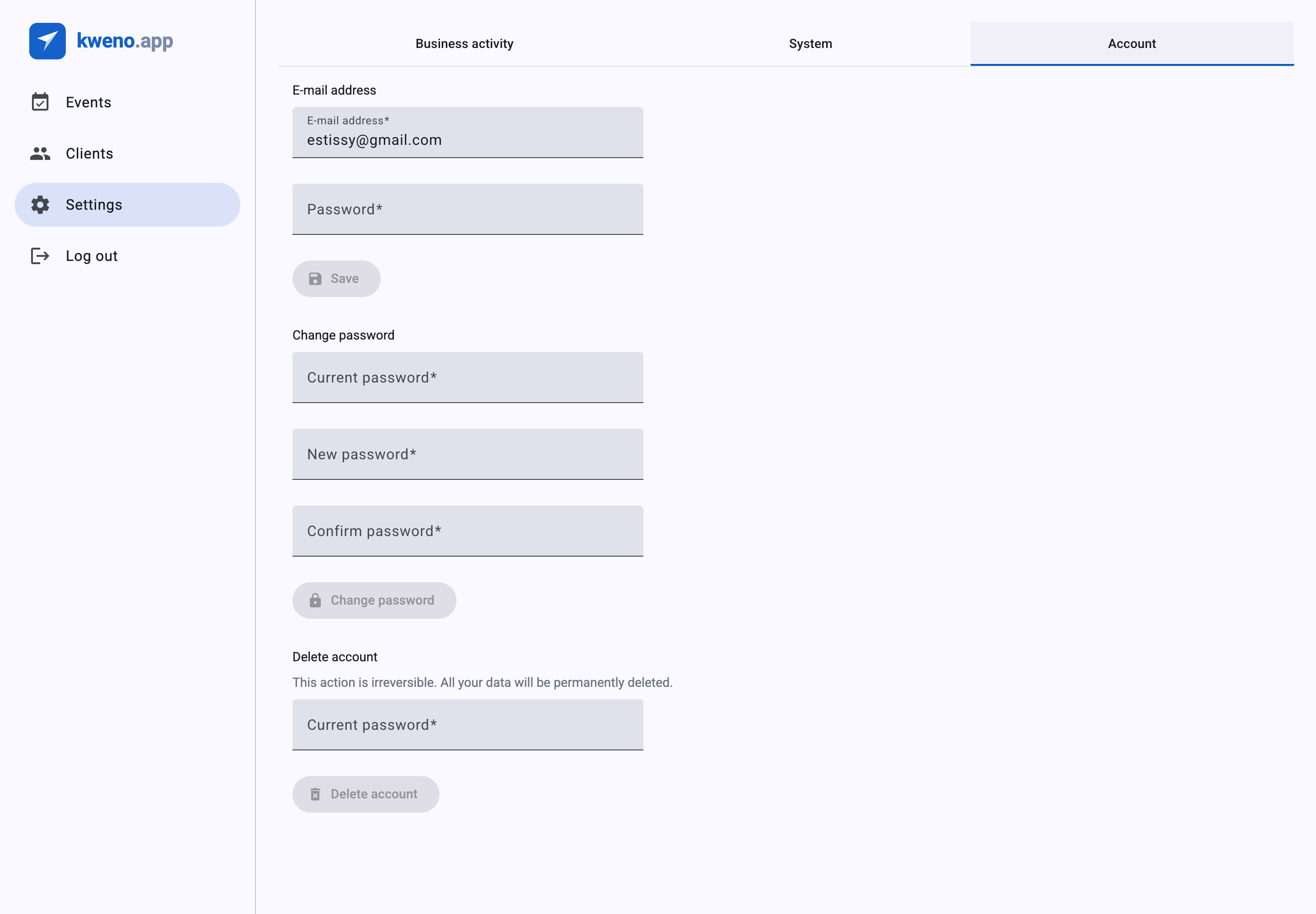
Manage the credentials you use to sign in, choose the language and regional preferences the app runs in, and — if you ever need to — permanently delete your account. These controls live under Settings, split across the Account tab (your password, e-mail and account deletion) and the System tab (your locale and timezone). Currency is set separately under Business activity.
If you have just created your account and are still working through the initial setup, see Onboarding first.
Change your password
On the Account tab, the Change password section lets you set a new password without leaving the app. You confirm your identity with your current password, then enter the new one twice.
- Open Settings and go to the Account tab.
- In the Change password section, type your existing password into Current password.
- Type your new password into New password.
- Repeat it exactly in Confirm password.
- Click Change password.
| Field | What it is | Notes |
|---|---|---|
| Current password | Your existing password, used to authorize the change | Required. |
| New password | The password you want to switch to | Required. Must be 8 to 255 characters long. |
| Confirm password | The new password again | Required. Must match New password exactly. |
The Change password button stays disabled until every field is filled in and the two new-password entries match.
Note
There is no separate "saved" banner after a successful password change — the form simply resets. If you want to be sure the new password works, sign out and sign back in with it.
If the change is rejected
- If Current password does not match your real password, the app shows "Current password is incorrect" next to that field. Re-enter your existing password and try again.
- If New password and Confirm password are not identical, the app shows "Passwords do not match". Retype both so they are exactly the same.
Tip
Forgot the password you are currently signed in with? You cannot change it here without it. Sign out and use the Forgot password? link on the login screen to reset it by e-mail instead.
Change your e-mail
The E-mail address section on the Account tab changes the address you use to sign in and that appears on account communications. Because it is a sensitive change, it happens in two steps: first you request the change, then you confirm it with a code sent to the new address.
Step 1 — Request the change
- Open Settings and go to the Account tab.
- In the E-mail address section, replace the value in E-mail address with the new address you want to use.
- Type your current password into Password to authorize the change.
- Click Save.
| Field | What it is | Notes |
|---|---|---|
| E-mail address | The new address you want to sign in with | Required. Must be a valid e-mail, up to 180 characters. Prefilled with your current address. |
| Password | Your current password | Required, used to confirm it is really you. |
When the request is accepted, the app switches to the confirmation step and shows the note "A verification code has been sent to your new e-mail address." A 6-digit code is e-mailed to the new address.
The code expires quickly
The verification code is valid for 15 minutes only. If you do not confirm within that window, request the change again to receive a fresh code.
Step 2 — Confirm with the code
- Open the e-mail sent to your new address and note the 6-digit code.
- Type the code into the Verification code field (it accepts up to 6 characters).
- Click Confirm.
The code must be exactly 6 digits. On success, your account e-mail is updated and the E-mail address field shows the new address. If you change your mind before confirming, click Cancel to abandon the pending change and clear the code field — your e-mail stays unchanged.
Troubleshooting the e-mail change
| Message | Where it appears | What it means |
|---|---|---|
| "This e-mail address is already in use" | Under E-mail address in step 1 | Another account already uses that address. Choose a different one. |
| "Password is incorrect" | Under Password in step 1 | The password you entered to authorize the change is wrong. Re-enter your current password. |
| "Invalid or expired code" | Under Verification code in step 2 | The code is wrong or the 15-minute window has passed. Restart the change to get a new code. |
Note
The confirmation code goes to the new address, not your current one — so you must be able to receive mail there before you can complete the change.
Preferences
Your regional and language preferences live on the System tab, under the System settings heading. Currency is a separate, fixed setting under Business activity.
Locale and timezone
- Open Settings and go to the System tab.
- Choose your Locale and Timezone.
- Click Save.
| Field | What it is | Options |
|---|---|---|
| Locale | Language and regional formatting for the app | Polish (Poland) or English. |
| Timezone | The timezone used to interpret and display dates and times | Any IANA timezone (for example Europe/Warsaw). |
The Locale field carries the hint "This choice affects language, date format, first day of the week, and number formatting". In other words, one setting controls all of the following:
- The language the interface is shown in.
- The date format used throughout the app.
- The first day of the week in calendars and pickers.
- Number formatting (decimal and thousands separators).
Quick language switch
You do not have to open Settings to change the language for a session. Use the Change language control in the top bar and pick Polish or English to switch immediately. Setting Locale on the System tab is the durable, account-wide choice that also governs date, week and number formatting.
Currency
Currency is chosen under the Business activity tab, on the Currency sub-tab, using the Currency field.
- The only available option is "PLN - Polish zloty".
- Because the app currently supports a single currency, this setting is effectively fixed to PLN. Select it and click Save.
Info
All amounts across the app — invoices, costs, working-time rates — are handled in PLN. There is no other currency to choose today.
Your currency, together with the rest of your company details, is part of your Business activity configuration — see Business data.
Delete your account
The Delete account section on the Account tab permanently removes your account. Use it only if you are certain you no longer need kweno.app.
This cannot be undone
Deleting your account carries the warning "This action is irreversible. All your data will be permanently deleted." Once deleted, the account can no longer sign in and its data cannot be recovered.
- Open Settings and go to the Account tab.
- Scroll to the Delete account section and read the warning.
- Type your password into Current password to confirm it is really you.
- Click Delete account.
| Field | What it is | Notes |
|---|---|---|
| Current password | Your current password | Required, to confirm the deletion. |
If the password is wrong, the app shows "Current password is incorrect" and nothing is deleted. On success, you are signed out and returned to the login screen; the deleted account can no longer be used to sign in.
Related
- Onboarding — the initial setup that runs when you first sign in.
- Business data — your company details and the Currency setting, under Business activity.